Windows Defender real-time protection against malware continues to run despite having Automatic operation disabled.
In actuality, this built-in malware protector from Microsoft is very poor at protecting your computer from external threats. You are much better off using a 3rd-party software program like XoftSpy for total protection (see Vista Speed Secret #9 for more information).
To disable:
1. Click the Start button
2. Type “services” into the Start Search box
3. Find Windows Defender in the list of programs
4. Double-click on Windows Defender
5. Choose Tools from the top menu

Showing posts with label tutorial windows. Show all posts
Showing posts with label tutorial windows. Show all posts
Friday, February 18, 2011


Windows Vista/Seven Speed Secret #21: Shut-Off Windows Hibernation
Windows hibernation background services use a very large amount of system resources. If you are like most people you don’t use the Hibernate feature very much so you may want to disable it to give Vista a performance boost.
To shut down Hibernation:
1. Click the Start button
2. Select Control Panel
3. Click the Classic View on the left hand side
4. Double-click on Power Options
5. Select Change Plan Settings
6. Choose Change Advanced Power Settings
Windows Vista/Seven Speed Secret #20: Shutdown Remote Differential Compression
Remote Differential Compression checks the changes of your files over a network to move them with as little bandwidth as possible instead of transferring an entire file that has previously been moved.
Obiviously, the average home PC user has NO need for this service. With it constantly checking for file changes, this service will greatly slow system performance.
To shut down this service:
1. Click the Start button
2. Select Control Panel
3. Click Classic View on the left side of the window
4. Double-click on Programs and Features
5. Click Turn Windows Features On And Off on the left side of the window
Obiviously, the average home PC user has NO need for this service. With it constantly checking for file changes, this service will greatly slow system performance.
To shut down this service:

1. Click the Start button
2. Select Control Panel
3. Click Classic View on the left side of the window
4. Double-click on Programs and Features
5. Click Turn Windows Features On And Off on the left side of the window
Windows Vista/Seven Speed Secret #18: Turn-Off Un-Needed Features
There are many new features in Windows Vista that are installed by default that you may not need. These extra and un-needed features can slow down your computer and take up more storage space.
Windows Features can be un-installed using the Windows Features utility. Follow these steps to uninstall applications such as the Windows Fax and Scan and many more.
To Turn-Off Some Un-Needed Features:
1. Click on the Start Button
2. Select Control Panel
3. Under Programs click Uninstall a program
4. On the left side menu, click on Turn Windows features on or off
5. Scroll through the list as shown below and uncheck from any feature you do not want installed.
Windows Features can be un-installed using the Windows Features utility. Follow these steps to uninstall applications such as the Windows Fax and Scan and many more.
To Turn-Off Some Un-Needed Features:
1. Click on the Start Button
2. Select Control Panel
3. Under Programs click Uninstall a program
4. On the left side menu, click on Turn Windows features on or off
5. Scroll through the list as shown below and uncheck from any feature you do not want installed.
Windows Vista/Seven Speed Secret #19: Disable Unused Services
Services are background processes which keep running waiting for a response, so if you don’t use the application it still runs and slows PC speed.
The average user doesn’t need many running.
1. Click the Start button
2. Type msconfig in the Start Search box, hit enter
3. Click the Services tab
4. Uncheck the unneeded startup items (examples below)
Desktop Window Manager Session Manager - Provides Desktop Window Manager startup and maintenance services. Uncheck to disable.
Diagnostic Policy Service - Enables problem detection, troubleshooting and resolution for Windows components. Uncheck to disable.
The average user doesn’t need many running.
1. Click the Start button
2. Type msconfig in the Start Search box, hit enter
3. Click the Services tab
4. Uncheck the unneeded startup items (examples below)
Desktop Window Manager Session Manager - Provides Desktop Window Manager startup and maintenance services. Uncheck to disable.
Diagnostic Policy Service - Enables problem detection, troubleshooting and resolution for Windows components. Uncheck to disable.
Windows Vista/Seven Speed Secret #16: Clean Your System Registry
Of course, the fastest and easiest way to speed-up your computer is to allow a software program to do it for you! Although you will find that all of the adjustments in this book will speed up your system, the most effective and easiest way to give your computer blazing speed is to clean up your system’s Registry.
Your computer is like your car: it needs periodic maintenance to keep it running at optimum performance. Installing and un-installing programs, surfing the Internet, emailing, and other everyday activities create a sort of “sludge” that builds up in your computer over time, much like an automobile engine.
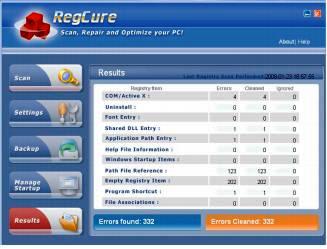
Your computer is like your car: it needs periodic maintenance to keep it running at optimum performance. Installing and un-installing programs, surfing the Internet, emailing, and other everyday activities create a sort of “sludge” that builds up in your computer over time, much like an automobile engine.
Windows Vista/Seven Speed Secret #15: Disable Automatic Disk Defragment
Windows Vista uses an always-on defragment set up that isn’t that necessary and will cause your system to slow down. Remember to run a defragment manually once a month.
Windows Vista/Seven Speed Secret #14: Shutdown Search Indexing
Windows Vista Search Indexing is constantly checking the files on your system to make their information available for quick searching. This is helpful, but can severely slow system performance as the average user doesn’t use the search function frequently.
Saturday, January 22, 2011
Windows Vista/Seven Speed Secret #13: Remove Spyware, Adware, and Malware
Windows Vista/Seven - Speed Secrets : Microsoft Doesn’t Want You To Know! (# 13)
Have you scanned your system for spyware, adware and other
unwanted pests? 1 of 6 computers has some sort of Spyware or
Malware! They dramatically slow down your computer because they
use resources to generate popup ads, send spam, and often
interfere with the operation of good programs.
Have you scanned your system for spyware, adware and other
unwanted pests? 1 of 6 computers has some sort of Spyware or
Malware! They dramatically slow down your computer because they
use resources to generate popup ads, send spam, and often
interfere with the operation of good programs.
Friday, January 21, 2011
Windows Seven/Vista Speed Secret #12: Disable Unnecessary Graphical Effects

Vista is “sexy” because of its new aero glass transparency effects.
Here is how to enable and disable this new eye candy.
1. Click Start (Windows) button
2. Select the Control Panel
3. Double-click Click Appearance and Personalization
Thursday, January 20, 2011
Windows Vista/Seven - Speed Secrets (# 11) : Microsoft Doesn’t Want You To Know!
Windows Vista/Seven
Windows Vista is a rather heavy operating system with many neat
features, but unfortunately they all come at a price. As a brand new
operating system, it requires a pretty fast system to run well, if
not optimized.

Windows Vista is a rather heavy operating system with many neat
features, but unfortunately they all come at a price. As a brand new
operating system, it requires a pretty fast system to run well, if
not optimized.
Wednesday, January 19, 2011
Windows XP Speed Secret #10: Remove Un-Used Programs & Files

You may have a bunch of software packages on your hard drive that
are no longer needed, or they were gratuitously installed when you
downloaded some other package. Toolbars, file-sharing
programs, free email enhancers, online shopping "companions"
and download managers are notorious for this practice.
Tuesday, January 18, 2011
Windows XP Speed Secret # 9: Disable File Indexing

Indexing Services is a small little program that uses large amounts
of memory and can often make a computer endlessly loud and
noisy. This system process indexes and updates lists of all the files
that are on your computer. It does this so that when you do a search
for something on your computer, it will search faster by scanning the
index lists. If you don’t search your computer often, this system
service is completely unnecessary. To disable do the following:
Monday, January 17, 2011
Windows XP Speed Secret #8: Enable Direct Memory Access (DMA)

1. Right-click on My Computer, select Properties
2. Select the Hardware tab
3. Click the Device Manager button
4. Double-click IDE/ATAPI controllers
5. Double-click on the Primary IDE Channel
Sunday, January 16, 2011
Windows XP Speed Secret #7: Run Disk Clean-Up

Both Windows and application programs tend to leave temporary
files lying around on your hard drive, taking up space. A hard drive
that is close to being “full” can cause Windows to slow down or
interfere with efficient disk access and virtual memory operations.
Windows XP Speed Secret #6: Clean Your System Registry
Windows XP Speed Secrets : Microsoft Doesn’t Want You To Know! (#6)
Of course, the fastest and easiest way to speed-up your computer is
to allow a software program to do it for you! Although you will find
that all of the adjustments in this book will speed up your system,
the most effective and easiest way to give your computer blazing
speed is to clean up your system’s Registry.
Of course, the fastest and easiest way to speed-up your computer is
to allow a software program to do it for you! Although you will find
that all of the adjustments in this book will speed up your system,
the most effective and easiest way to give your computer blazing
speed is to clean up your system’s Registry.
Friday, January 14, 2011
Windows XP Speed Secret #5: Reduce Page File Size
Windows XP Speed Secrets : Microsoft Doesn’t Want You To Know!
Windows XP Speed Secret #5: Reduce Page File Size
Windows XP Speed Secret #5: Reduce Page File Size
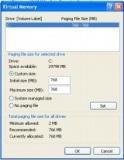
Page file size is not constant by default.
Due to this, the operating system has to resize
the file each time more space is required.
This is a performance overhead.
All you have to do is to set the file size to a reasonable limit.
Follow the steps :
Thursday, January 13, 2011
Windows XP Speed Secret #4: Speed-Up File Browsing
Microsoft Doesn’t Want You To Know! (#4)
Windows XP Speed Secret #4: Speed-Up File Browsing
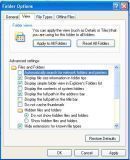
You may have noticed that every time you open “My Computer” to browse folders that there is a slight delay. This is because Windows XP automatically searches for network files and printers every time you open Windows Explorer. To fix this and to increase browsing speed significantly:
1. Double-click on My Computer
2. Click the Tools menu
3. Select Folder Options
Windows XP Speed Secret #4: Speed-Up File Browsing
You may have noticed that every time you open “My Computer” to browse folders that there is a slight delay. This is because Windows XP automatically searches for network files and printers every time you open Windows Explorer. To fix this and to increase browsing speed significantly:
1. Double-click on My Computer
2. Click the Tools menu
3. Select Folder Options
Wednesday, January 12, 2011
Windows XP Speed Secret # 3: Optimize Display Settings

Microsoft Doesn’t Want You To Know! (#3)
Windows XP can look sexy but displaying all the visual items can waste system resources.
To optimize:
1. Click the Start button
2. Select Control Panel
3. Double-click the System icon
4. Click the Advanced tab
5. In the Performance box click Settings
6. Leave only the following ticked:
Tuesday, January 11, 2011
Windows XP Speed Secret #2: Remove Spyware, Adware, and Malware

XP Speed Secret #1: Disable Extra Startup Programs
Have you scanned your system for spyware, adware and other unwanted pests? 1 of 6 computers has some sort of Spyware or Malware! They dramatically slow down your computer because they use resources to generate popup ads, send spam, and often interfere with the operation of good programs.
Subscribe to:
Posts (Atom)